Signing in
Go to app.focus-flow.life in any modern browser. FocusFlow uses a two-step sign-in:1
Enter your email
Type your work email address and tap Continue.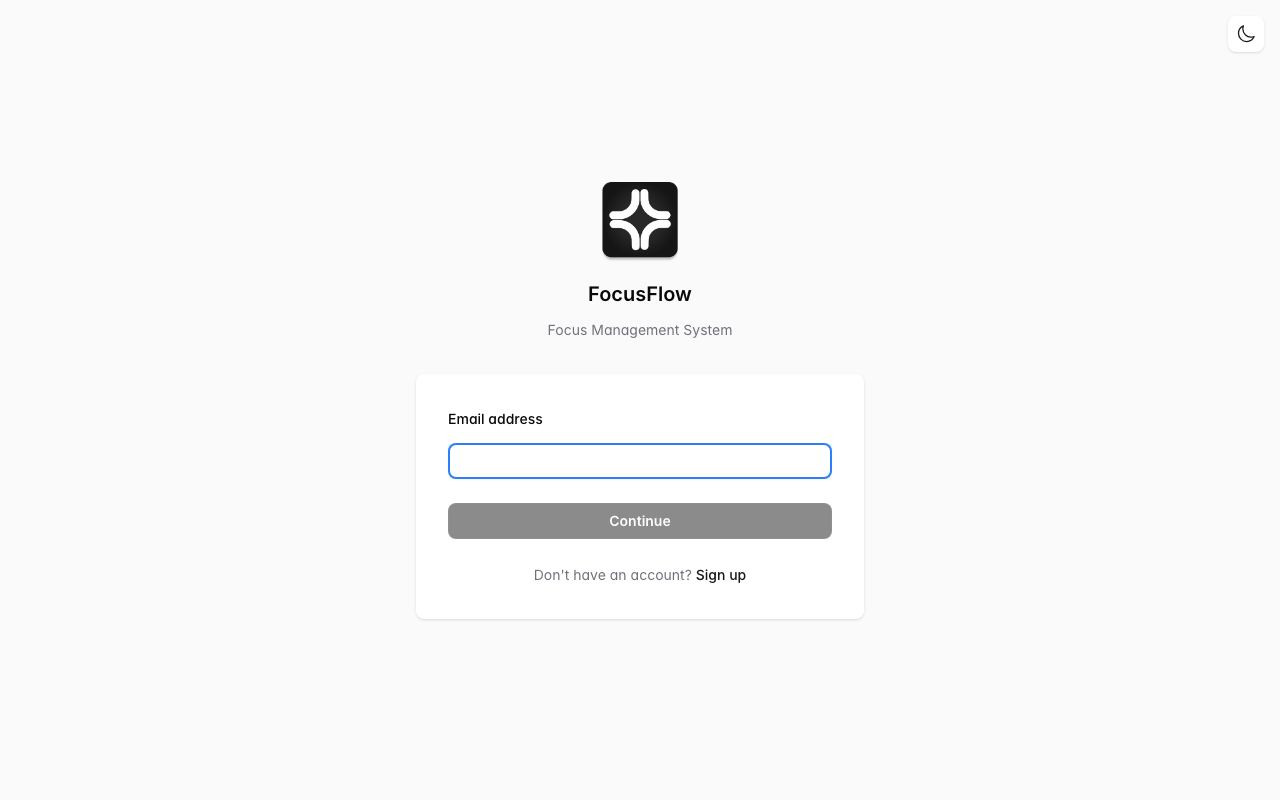
2
Enter your password (or use SSO)
If your organisation uses Single Sign-On, you’ll see a Sign in with SSO button. Otherwise, enter your password.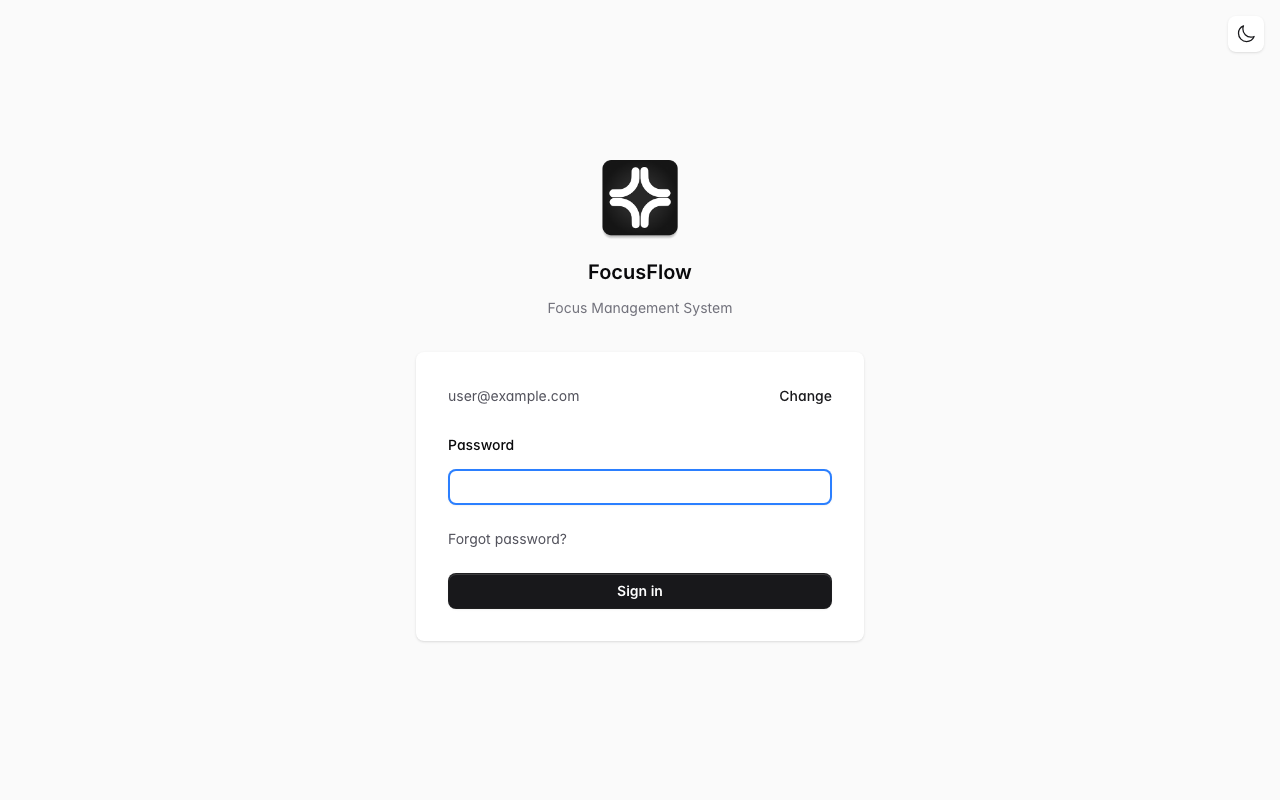
Your activity
After signing in, the My Activities page shows your recent focus sessions — when they started, which tag triggered them, and how long they lasted. This is your personal history and is only visible to you and your organisation’s admins.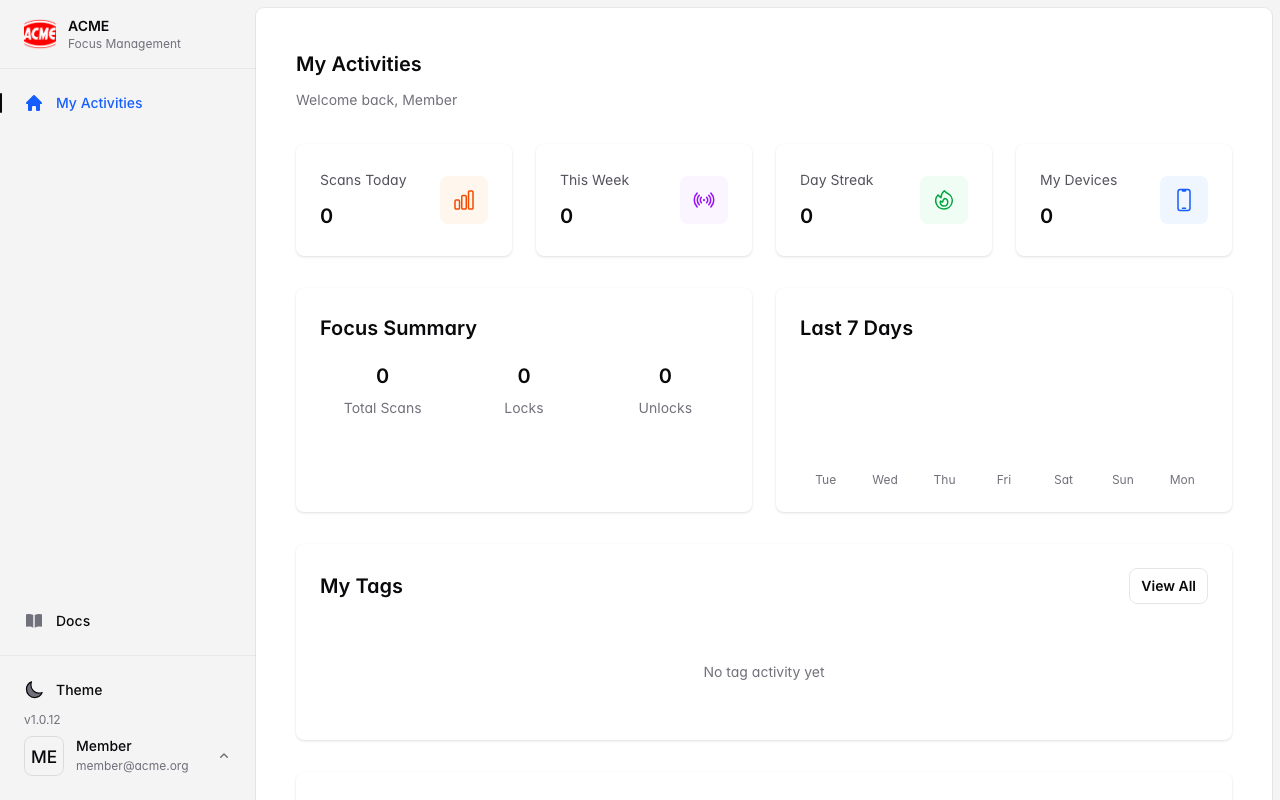
The building blocks
Organisation
Your top‑level account. Everything — users, tags, profiles — lives inside it and is private to it.
Users & roles
People in your organisation. Each has a role: Admin, Tag Admin, or Member (see below).
Devices
Each phone/tablet running the FocusFlow app registers itself as a device when someone signs in.
NFC Tags / QR codes
Physical (or printed) triggers. Each carries a unique Tag UID. Scanning one starts or ends a focus session.
Restriction Profiles
A named set of categories to block (e.g. “No Social Mode” blocks Social Networking + Games).
Policies
Rules that decide which profile applies when a tag is scanned — optionally by tag, time of day, or day of week.
Roles at a glance
Members can scan tags and run focus sessions, but only Admins and Tag Admins can create or change tags and profiles. Only Admins manage users, settings, and the subscription.
The dashboard menu
When you sign in to the web app you’ll find these areas in the navigation:Dashboard
Dashboard
A summary of your organisation — number of devices, tags, recent scans, and your current plan usage.
Restriction Profiles
Restriction Profiles
Define what each profile blocks. See Creating Profiles.
Policies
Policies
Connect tags, times, and profiles so the right thing is blocked at the right moment. See Creating Policies.
Devices & Reports
Devices & Reports
See enrolled devices and a history of scan events (locks, unlocks, and clears). See Reporting.
Users
Users
Invite people and set their roles. See User Management.
Settings & Billing
Settings & Billing
Organisation settings, your own profile, and your subscription. See Settings and Subscription.
How it fits together
1
Create a profile
Decide what a focus session should block — e.g. Social Networking and Games.
2
Register a tag
Add an NFC tag (or generate a QR code) and give it a clear name and location.
3
(Optional) Add a policy
Want different profiles at different times or for different tags? Add a policy. Otherwise your default profile applies.
4
Scan to focus
A user taps the tag (or scans the QR) in the app — the matching profile is applied until they scan to unlock.