

You only register an organisation once. After that, everyone else joins by invitation (see User Management) — they don’t create their own organisation.
Step 1 — Open the web app
Go to app.focus-flow.life in any modern browser (Chrome, Safari, Edge, or Firefox).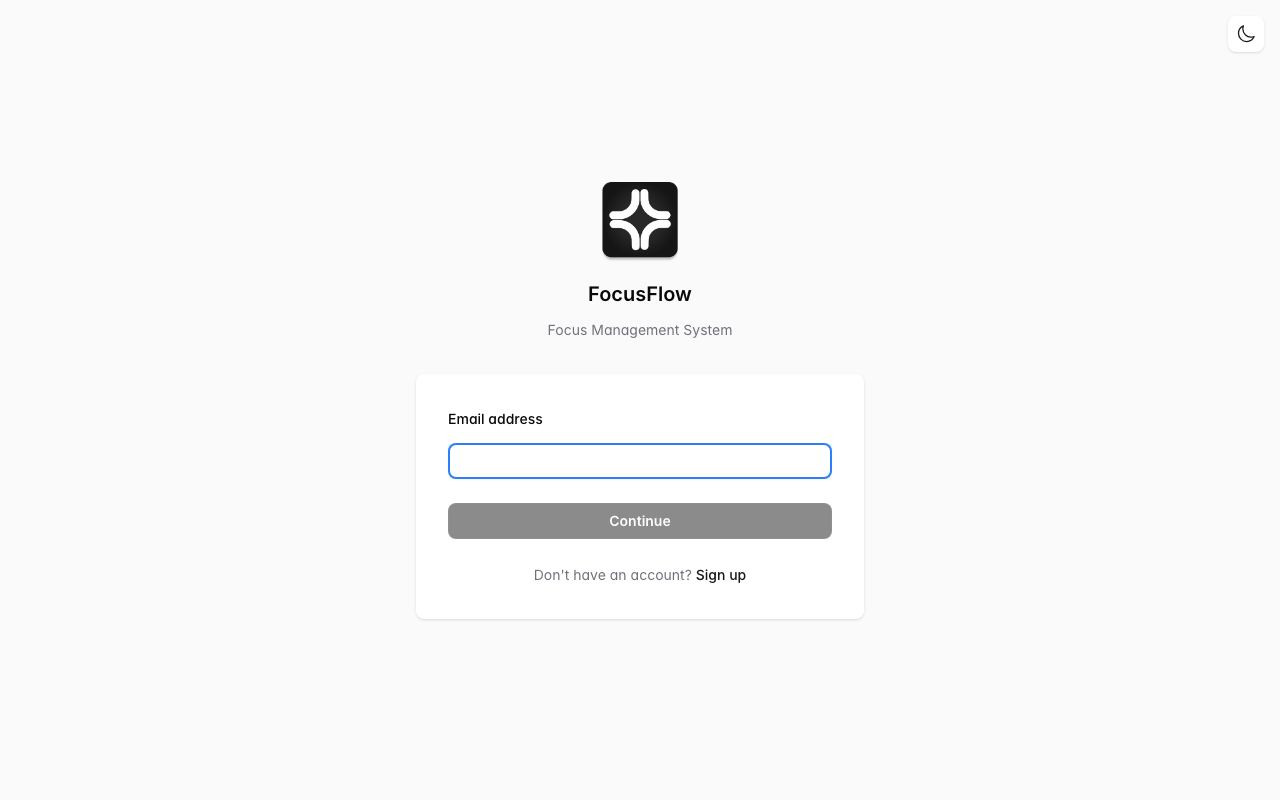
Step 2 — Create your account
1
Choose Sign up
On the sign‑in screen, select Sign up (or Create account).
2
Enter your details
Provide your work email and a strong password, or choose Continue with Google to use your Google account.
3
Verify your email
If prompted, open the verification email from FocusFlow and click the confirmation link. You can then return to the web app and sign in.
Step 3 — Create your organisation
The first time you sign in, you’ll be asked to set up your organisation.1
Name your organisation
Enter your school, business, or family name (e.g. “Greenfield Primary”). This appears throughout the app and on your team’s devices.
2
Finish onboarding
Complete any remaining prompts. When you’re done you’ll land on the Dashboard — and you’re now the organisation administrator.
You’re set up! Your organisation starts on a free tier with a default restriction profile already created for you.
What to do next
Create your first tag
Register an NFC tag or generate a QR code so people can start focus sessions.
Set up what gets blocked
Build restriction profiles that decide which categories are blocked.
Invite your team
Add teachers and members so they can sign in on their devices.
Learn the layout
Take a tour of the dashboard menus and what each section does.