

SSO is available on the Starter and Enterprise plans. Only Admins can configure SSO.
How it works
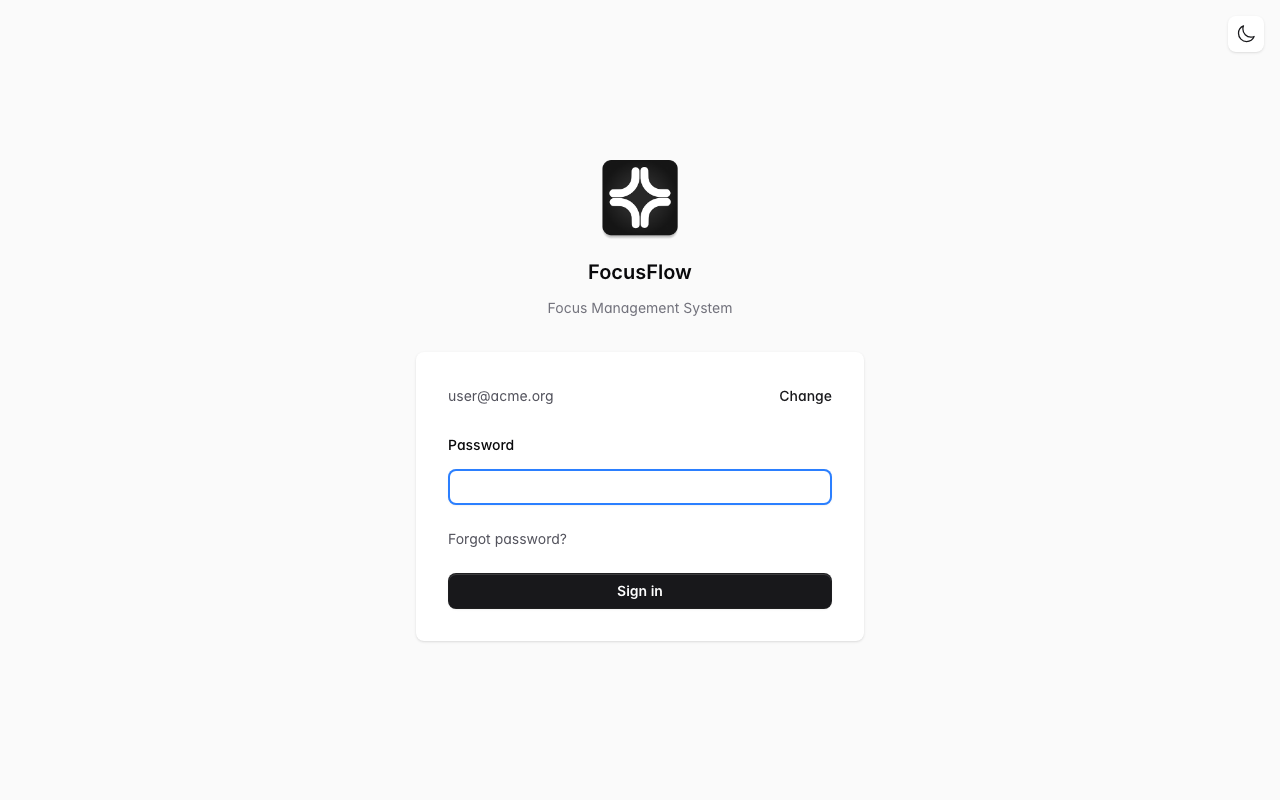
- A user types their work email on the FocusFlow sign-in screen and taps Continue.
- FocusFlow detects the domain (
yourcompany.com) and shows a Sign in with SSO button. - The user is redirected to your identity provider (Microsoft, Google, etc.) to authenticate.
- On success they are returned to FocusFlow and signed in — no FocusFlow password required.
Service Provider details
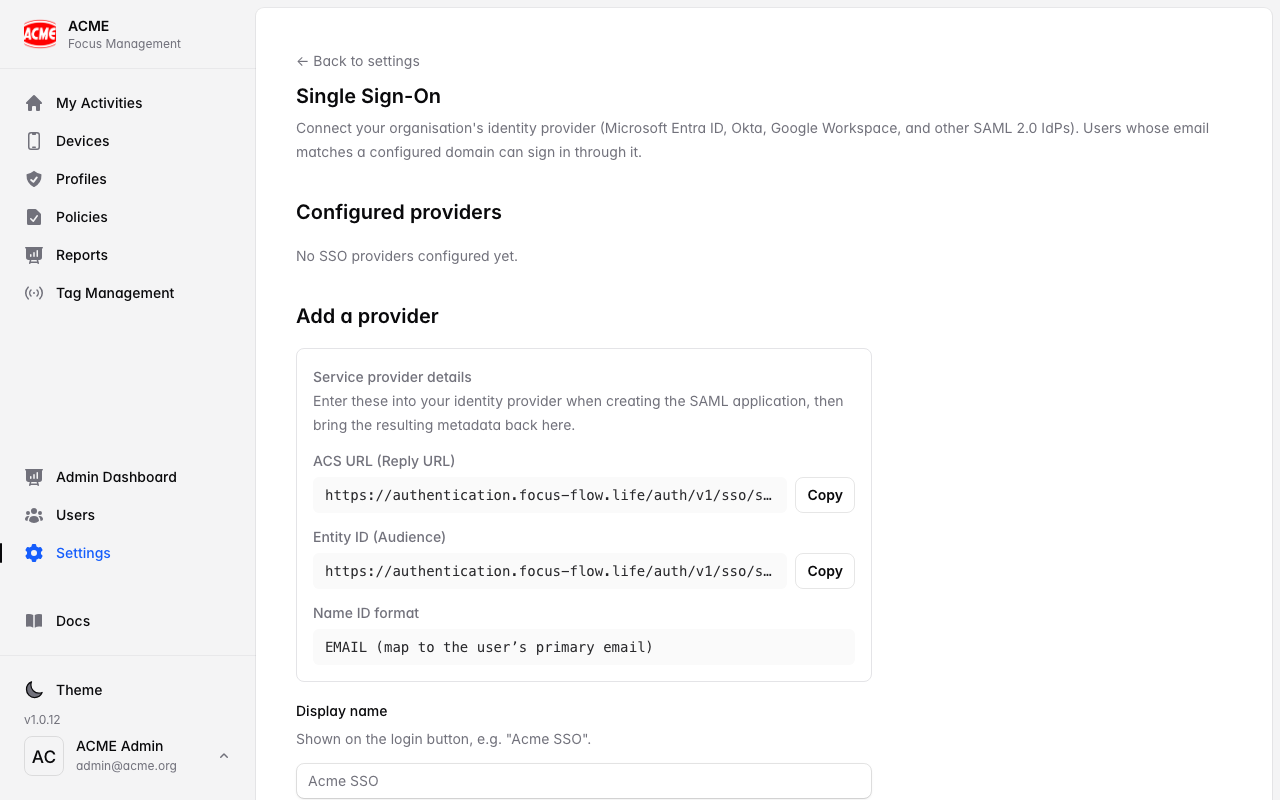
When configuring your IdP, you will be asked for FocusFlow’s Service Provider (SP) details. These are shown in Settings → Single Sign-On and are the same for every provider:Set up SSO with Google Workspace
1
Create a SAML app in Google Admin
- Sign in to Google Admin as a Super Admin.
- Go to Apps → Web and mobile apps → Add app → Add custom SAML app.
- Give it a name (e.g. FocusFlow) and click Continue.
2
Download the IdP metadata XML
On the Google Identity Provider details screen, click Download Metadata.
Save the file (
GoogleIDPMetadata.xml) — you will upload it to FocusFlow in the final step.3
Enter the FocusFlow Service Provider details
Click Continue to reach the Service provider details screen and fill in:
Leave Signed response checked. Click Continue.
4
Add the email attribute mapping
On the Attribute mapping screen, add the following mapping so FocusFlow can read the user’s email from the SAML assertion:
You can also map First name → first_name and Last name → last_name if you want names pre-filled on first sign-in. Click Finish.
5
Enable the app for your users
Back in the SAML app list, click the app and set User access to ON for everyone (or the relevant organisational unit). Changes can take up to 15 minutes to propagate.
6
Add the provider in FocusFlow
- In FocusFlow, go to Settings → Single Sign-On and click Add provider.
- Enter a Display name (e.g. “Google Workspace”) and your email domain (e.g.
yourcompany.com). - Select Upload XML file and upload the
GoogleIDPMetadata.xmlyou downloaded earlier. - Toggle Enabled on. Optionally toggle Enforced to prevent password sign-in.
- Click Add provider.
Test by opening a private / incognito browser, going to app.focus-flow.life, entering a
@yourcompany.com email address, and clicking Continue. You should see the Sign in with Google Workspace button and be redirected to Google to authenticate.Set up SSO with Microsoft Entra ID (Azure AD)
1
Register an Enterprise Application
- Sign in to the Microsoft Entra admin centre (or Azure Portal → Azure Active Directory).
- Go to Enterprise applications → New application → Create your own application.
- Name it FocusFlow, choose Integrate any other application you don’t find in the gallery, and click Create.
2
Configure SAML sign-on
- In the application, go to Single sign-on → SAML.
- In Basic SAML Configuration, click Edit and enter:
- Click Save.
3
Copy the App Federation Metadata URL
In the SAML Signing Certificate section, copy the App Federation Metadata Url.
It looks like:
Unlike Google, Microsoft provides a hosted metadata URL that FocusFlow can fetch automatically. You do not need to download a file.
4
Add an email attribute claim (if not already present)
In Attributes & Claims, verify that the
emailaddress claim exists and maps to user.mail. If it is missing, add it:FocusFlow automatically recognises both the short (
email) and the full URI form of the claim.5
Assign users or groups
In the application, go to Users and groups → Add user/group and assign the people (or groups) who should be able to sign in to FocusFlow. Anyone not assigned will be blocked by Entra even if FocusFlow is configured.
6
Add the provider in FocusFlow
- In FocusFlow, go to Settings → Single Sign-On and click Add provider.
- Enter a Display name (e.g. “Microsoft Entra”) and your email domain (e.g.
yourcompany.com). - Select Metadata URL and paste the App Federation Metadata Url from step 3.
- Toggle Enabled on. Optionally toggle Enforced.
- Click Add provider.
Test in a private browser at app.focus-flow.life with a
@yourcompany.com email. You should see the Sign in with Microsoft Entra button and be sent to Microsoft to authenticate.Manage providers
Troubleshooting
'SSO not available for this domain' on the sign-in screen
'SSO not available for this domain' on the sign-in screen
- Check that the provider is Enabled in Settings → Single Sign-On.
- Confirm the domain in FocusFlow matches exactly what comes after
@in the user’s email (e.g.yourcompany.com, notmail.yourcompany.com). - If you just added the provider, wait 30 seconds and try again.
'SAML assertion does not contain an email address'
'SAML assertion does not contain an email address'
This means the identity provider authenticated the user but didn’t include their email in the SAML response.Google Workspace: ensure the Primary email → email attribute mapping is added in the SAML app’s Attribute mapping screen (Step 4 above).Microsoft Entra: ensure the
emailaddress claim is present in Attributes & Claims and maps to user.mail.Redirected back to FocusFlow with an error after authenticating
Redirected back to FocusFlow with an error after authenticating
- Verify the ACS URL in your IdP exactly matches
https://authentication.focus-flow.life/auth/v1/sso/saml/acs(no trailing slash, correct subdomain). - Verify the Entity ID matches
https://authentication.focus-flow.life/auth/v1/sso/saml/metadata. - For Entra: confirm the user is assigned to the enterprise application.
Google: metadata changes not taking effect
Google: metadata changes not taking effect
Google SAML metadata is embedded in the downloaded XML file — it does not update automatically. If you rotate certificates in Google Admin, download a fresh
GoogleIDPMetadata.xml and use Edit in FocusFlow to upload the new file.Users who signed in before SSO was set up
Users who signed in before SSO was set up
Existing users who already had a FocusFlow password can continue to sign in with their password unless you enable Enforced mode. Once enforced, they must use SSO.New users who sign in via SSO for the first time are automatically added to your organisation — no invitation needed.
Mobile app SSO
Mobile app SSO
The iOS and Android apps support the same identifier-first flow. The user enters their email, taps Continue, and is sent to your IdP in the device’s browser. After authenticating they are returned to the app automatically.