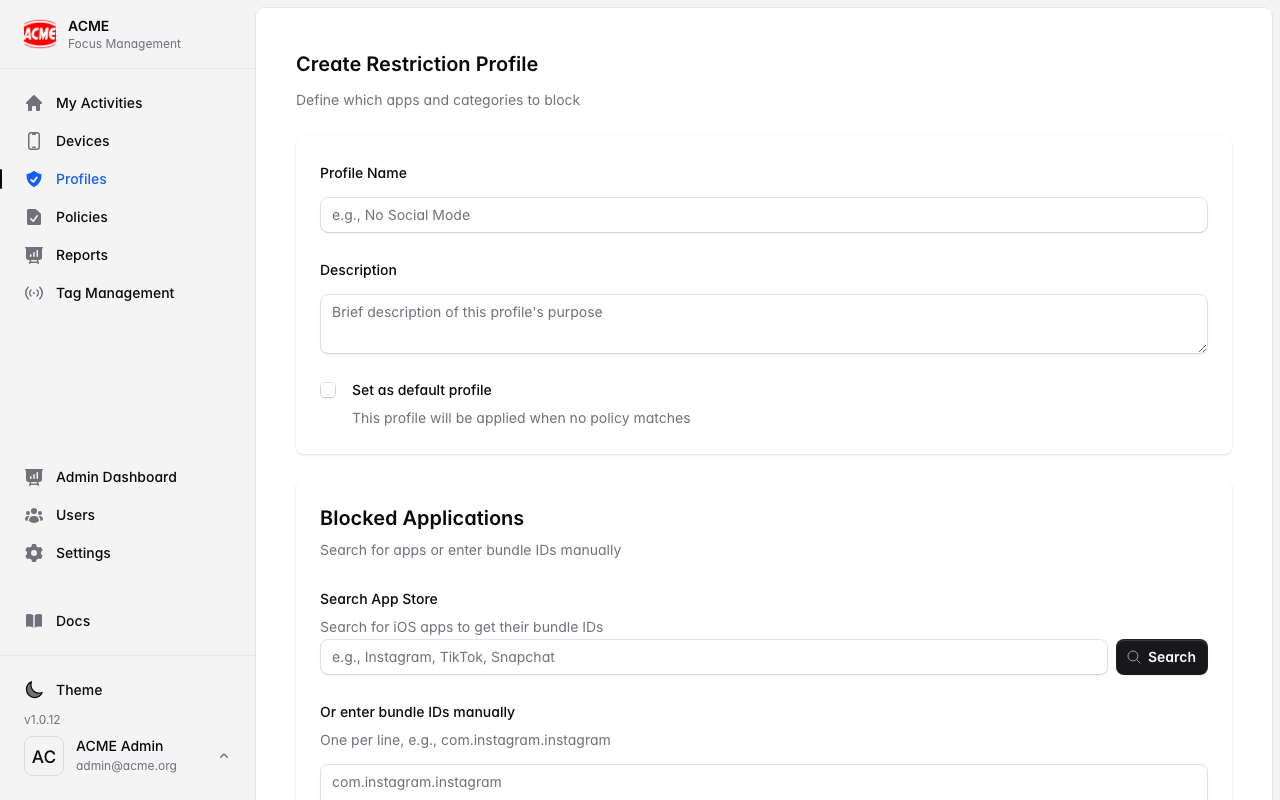
A restriction profile is a named set of categories to block during a focus session — for example, “No Social Mode” might block Social Networking and Games. When a tag is scanned, FocusFlow applies a profile.
Only Admins and Tag Admins can create or change profiles. Every organisation starts with a default profile you can edit.
The categories
FocusFlow uses a shared set of categories across iOS and Android so the experience is identical on every device:
Create a profile
Open Restriction Profiles
From the dashboard, go to Restriction Profiles and choose New profile.
Name and describe it
Give it a clear name (e.g. “Exam Focus”) and an optional description so your team knows when to use it.
Choose what to block
Tick the categories this profile should block. You can also choose an icon to make it easy to recognise on devices.
Save
Select Create. The profile is now available to everyone in your organisation.
Default profile
If no policy matches a scan, FocusFlow applies your organisation’s default profile. Mark the profile you want as the fallback as default — only one profile can be the default at a time.
Keep one broad, sensible default (e.g. block Social Networking + Games + Entertainment), then create more specific profiles for special situations like exams or reading time.
Editing on a device
Admins and Tag Admins can also tweak a profile from the mobile app: long‑press a profile card on the main screen to toggle its categories. Changes sync back to your organisation.
Categories vs apps
A profile chooses categories, not individual apps. Each device then maps those categories to its own installed apps in Authorised Scope. This is what keeps blocking consistent across different phones — and on iOS, privacy‑preserving.