Signing in
When you open FocusFlow for the first time you’ll see the login screen. Enter your email address and tap Continue to be prompted for your password.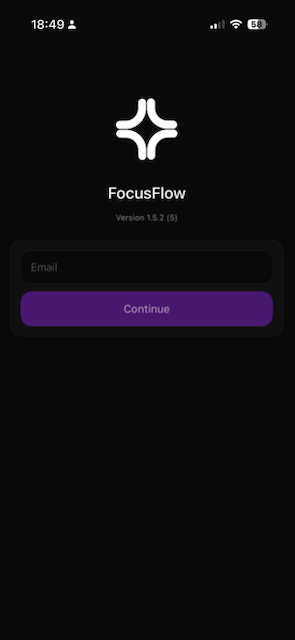
The main screen
After signing in you land on the Home tab. This is where you start and end every focus session.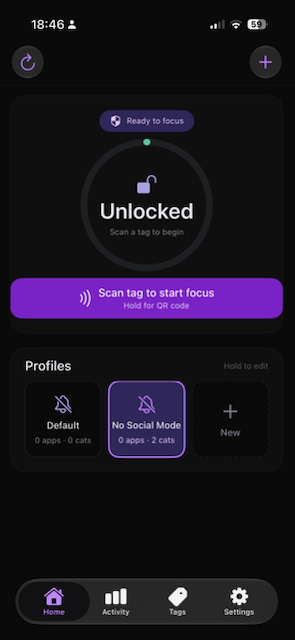
Status pill (top)
Shows “Ready to focus” when unlocked, or the active profile name and “blocking” during a session.
Focus circle
Displays Unlocked at rest. Tap the purple Scan tag to start focus button below it to begin scanning.
Profiles
Your available restriction profiles. The highlighted card is the one that will be applied when you scan. Long-press any profile to edit which categories it blocks.
Bottom navigation
Home · Activity · Tags · Settings — navigate between the main sections of the app.
Refresh (↻, top-left)
Syncs your profiles and settings from the server.
New tag (+, top-right)
Write a new NFC tag. Visible to Admins and Tag Admins only.
Starting a focus session
Tap the Scan tag to start focus button. FocusFlow arms the NFC reader and a “Ready to Scan” sheet slides up — hold the top of your iPhone near the tag.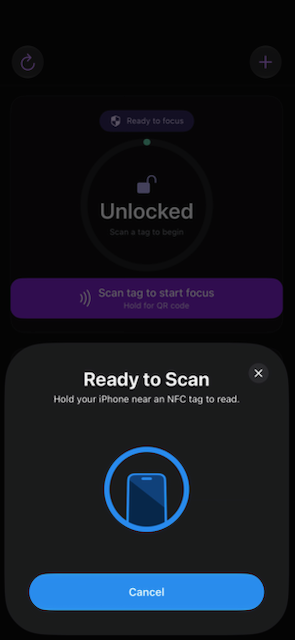
To use a QR code instead, hold the button for about half a second. The camera opens and scans automatically — no button to press.
During a focus session
Once the tag is read the app switches to Focused mode.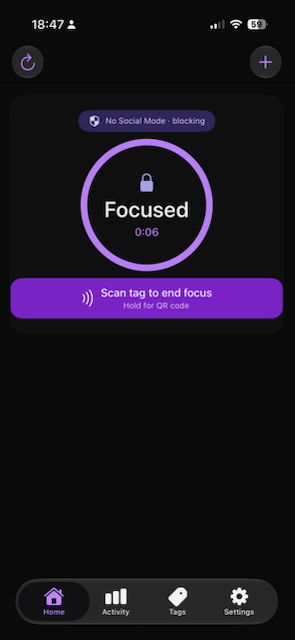
- The status pill shows the active profile name and “blocking”.
- The circle shows a locked icon, “Focused”, and an elapsed timer.
- The button changes to “Scan tag to end focus”.
What blocking looks like
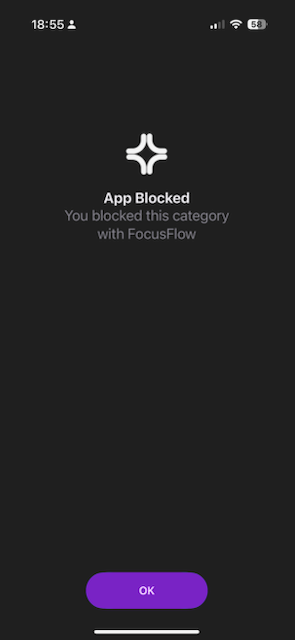
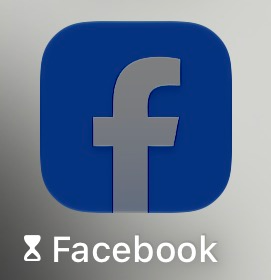
While a session is active, opening any app in a blocked category shows the FocusFlow App Blocked screen. On iOS, blocked apps also display an hourglass on their home screen icon.App Blocked screen
Blocked app icon (iOS)
Authorised Scope
FocusFlow blocks by category, so each device must specify which of its installed apps belong to each category. You configure this once — go to Settings → Authorised Scope.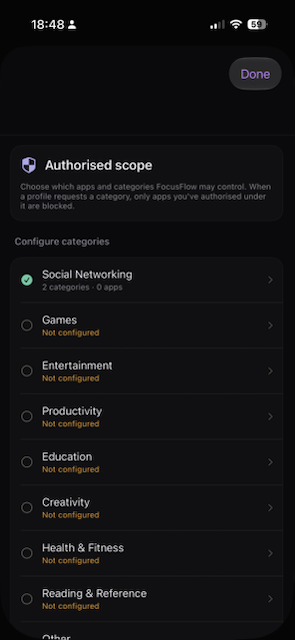
On iOS, FocusFlow uses Apple’s system app picker — FocusFlow never sees your app names. Apple handles the selection privately.
Activity tab
Tap Activity in the bottom navigation to view your focus history and stats.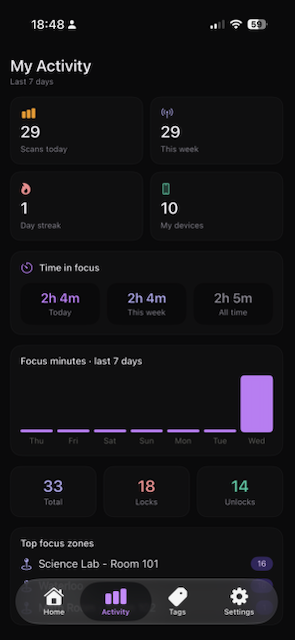
Editing a profile
Long-press any profile card on the Home screen to open the Edit Profile sheet, where you can toggle which categories that profile blocks.Editing profiles is available to Admins and Tag Admins only.