

NFC tag
Tap the focus button, then hold your phone near the tag.
QR code
Long‑press the focus button to open the camera and scan the code.
Scan an NFC tag
1
Tap the focus button
On the main screen, tap the Scan tag to start focus button. The app arms the NFC reader and the “Ready to Scan” sheet appears.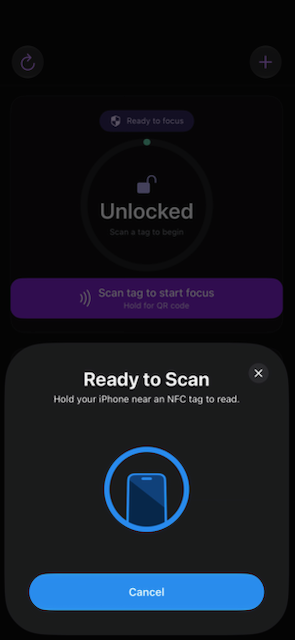
2
Hold the phone to the tag
Bring your phone close to the FocusFlow tag.
- iPhone: hold the top edge near the tag.
- Android: hold the centre/back of the phone near the tag.
3
Done
The session starts (or ends). The status pill and button text update to confirm.
No NFC? Some phones don’t have NFC hardware. That’s fine — use QR codes instead; they do exactly the same thing.
Scan a QR code
1
Long‑press the focus button
Press and hold the large icon for about half a second. The camera scanner opens.
2
Point at the QR code
Frame the FocusFlow QR code in the camera. It scans automatically — no button to press.
3
Done
The session starts (or ends), just like an NFC tap.
A FocusFlow QR code carries the same identifier as an NFC tag, so scanning either one has the same effect. Your admin can print QR codes for places where NFC tags aren’t practical.
Locking and unlocking
- First scan → starts a focus session and applies the right profile.
- Second scan → ends the session and unblocks your apps.
Unlocking with a different tag
You can end a session by scanning any valid tag — handy if you’ve moved away from the original one. When you do, FocusFlow records it as a “cleared” scan (rather than a normal unlock) so your organisation can see how often people don’t return to the original tag.Troubleshooting
Nothing happens when I tap a tag
Nothing happens when I tap a tag
Make sure NFC is turned on in your phone’s settings, and that you’re holding the correct part of the phone near the tag. Try again slowly. If your phone has no NFC, use the QR option (long‑press).
“NFC tag not found”
“NFC tag not found”
The tag isn’t registered to your organisation yet. Ask an admin to add the tag with the correct Tag UID.
Apps still open during a session (Android)
Apps still open during a session (Android)
The Accessibility service must be enabled. Open the app, tap Enable app blocking, and turn FocusFlow on under Settings → Accessibility.
The block screen won't appear (iOS)
The block screen won't appear (iOS)
Make sure you granted Screen Time / Family Controls permission. You can check under Settings → Screen Time.
A category isn't being blocked
A category isn't being blocked
Open Authorised Scope (shield icon) and make sure you’ve added apps to that category on your device.