

The Tags tab and the + button are only visible to users with the Admin or Tag Admin role. Regular users will not see these controls.
Viewing tags
Tap Tags in the bottom navigation to see all NFC tags registered to your organisation.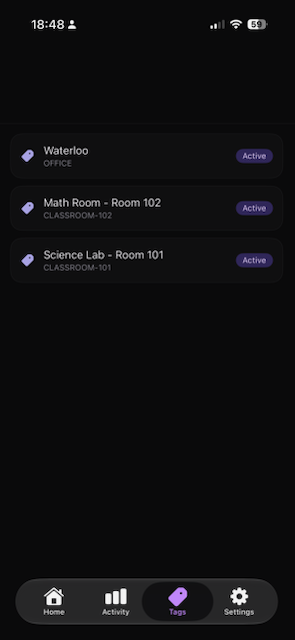
- Name — the friendly label for the tag (e.g. Science Lab - Room 101)
- Identifier — the short code used internally (e.g. CLASSROOM-101)
- Status badge — Active tags are live and ready to start/end focus sessions
Creating a new tag
Tap the + button in the top-right corner of the Home screen to write a new NFC tag.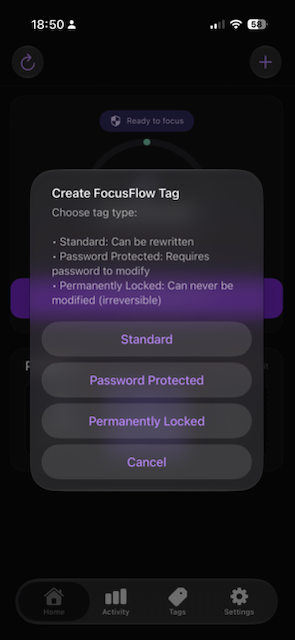
1
Tap + on the Home screen
The Create FocusFlow Tag sheet slides up.
2
Choose a tag type
Select Standard, Password Protected, or Permanently Locked based on your needs.
3
Hold an NFC tag to your iPhone
When prompted, hold a blank NFC sticker or tag near the top of your iPhone. FocusFlow writes the tag data and registers it with your organisation automatically.
4
Name the tag
Give the tag a name and location identifier, then save. It appears immediately in the Tags list and is ready to use.