

Only Admins can invite users or change roles.
The three roles
Admin
Full access — manage tags, profiles, policies, users, settings, and billing.
Tag Admin
Manage tags and profiles, and use the mobile app. Cannot manage users, settings, or billing.
Member
Use the mobile app and run focus sessions. No management access at all.
Role capabilities
Use this table to decide which role is right for each person in your organisation.Admin
Admins have full control over the organisation. There should be at least one Admin at all times — this is the person responsible for initial setup and ongoing management. Typical Admin roles: IT manager, school principal, business owner, or the person who set up FocusFlow.Tag Admin
Tag Admins can do everything needed to deploy and manage tags in the field — creating tags, generating QR codes, setting up restriction profiles, and running reports — without having access to sensitive areas like user management or billing. This is the right role for:- Teachers who manage their own classroom tags
- Facilities staff who install and maintain tags across a building
- Team leaders who configure profiles for their group
Member
Members are everyday users. They install the app, sign in, and start and end focus sessions. They cannot make any changes to the organisation’s configuration. This is the right role for:- Students
- Staff members who just need to use focus sessions
- Anyone who shouldn’t have management access
Invite a user
1
Open Users
From the dashboard, go to Users and choose Invite user.
2
Enter their email and role
Type the person’s email address and pick a role (Admin, Tag Admin, or Member).
3
Send the invitation
Select Invite. They’ll receive an email with a link to set their password and join your organisation.
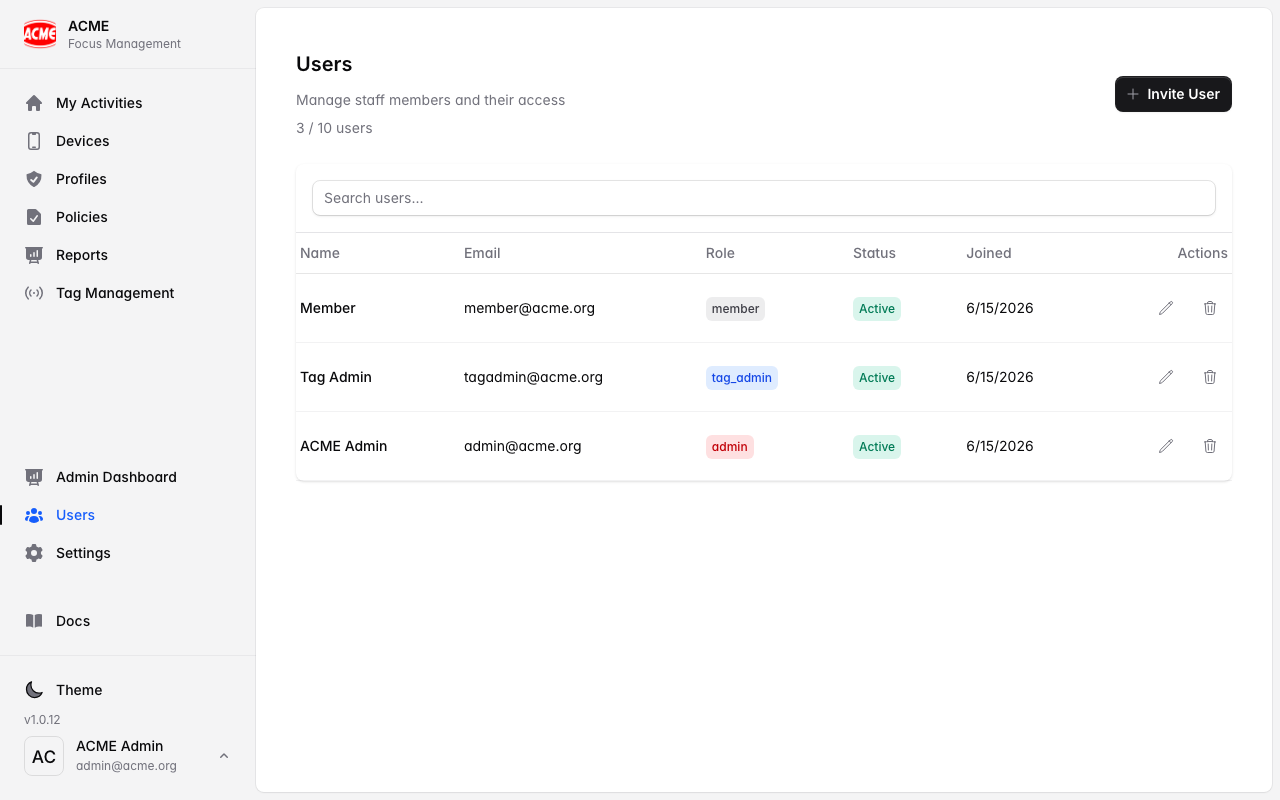
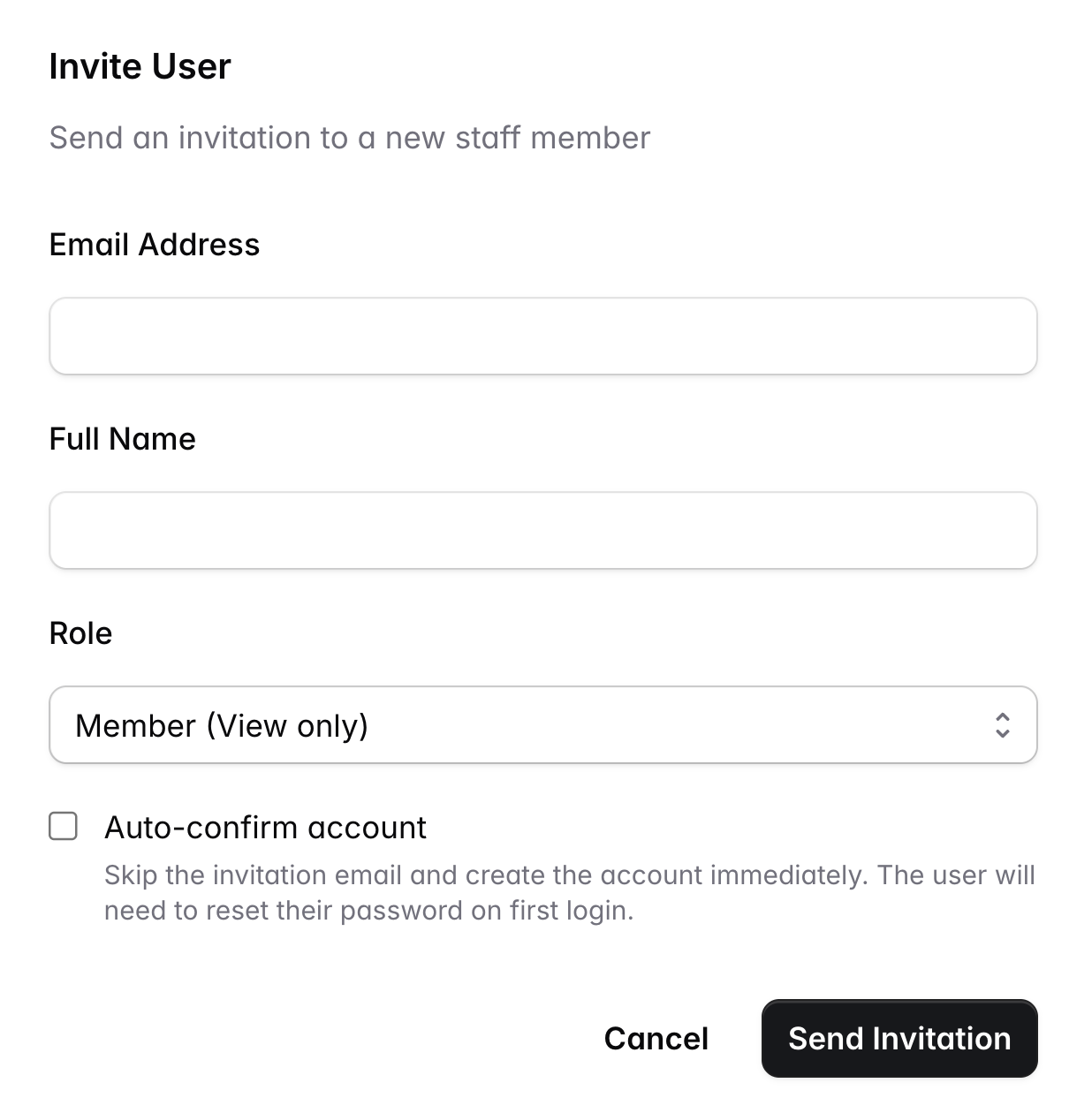
Invited users join your organisation — they don’t create a new one. Once they accept, they can sign in to both the web app and the mobile app.
Change a role or remove a user
- Change role: open the user and select a new role. Changes take effect the next time they sign in.
- Remove a user: removing a user revokes their access immediately. Their past scan history remains in your reports.
Tips for schools and teams
Give teachers the Tag Admin role
Give teachers the Tag Admin role
Tag Admins can create tags and profiles for their classroom without needing full admin access. This keeps billing and user management centralised.
Students and staff are Members
Students and staff are Members
Members can scan and focus, but can’t change anything. Keep management tidy by only giving Tag Admin or Admin roles to people who need them.
SSO simplifies onboarding
SSO simplifies onboarding
If your organisation uses Microsoft Entra or Google Workspace, set up SSO so staff sign in automatically without a separate FocusFlow password. New SSO users are added to your organisation on first sign-in — no manual invitation needed.