Only Admins and Tag Admins can create or change policies. Policies are optional — if you just want one profile everywhere, set it as the default and skip policies entirely.
When you need policies
Different rooms, different rules
Block more in the library tag than in the common‑room tag.
Scheduled focus
Apply “Exam Focus” only during exam hours, and a lighter profile otherwise.
School days only
Restrict on weekdays, relax on weekends.
Per‑tag profiles
Point specific tags at specific profiles.
Create a policy
1
Open Policies
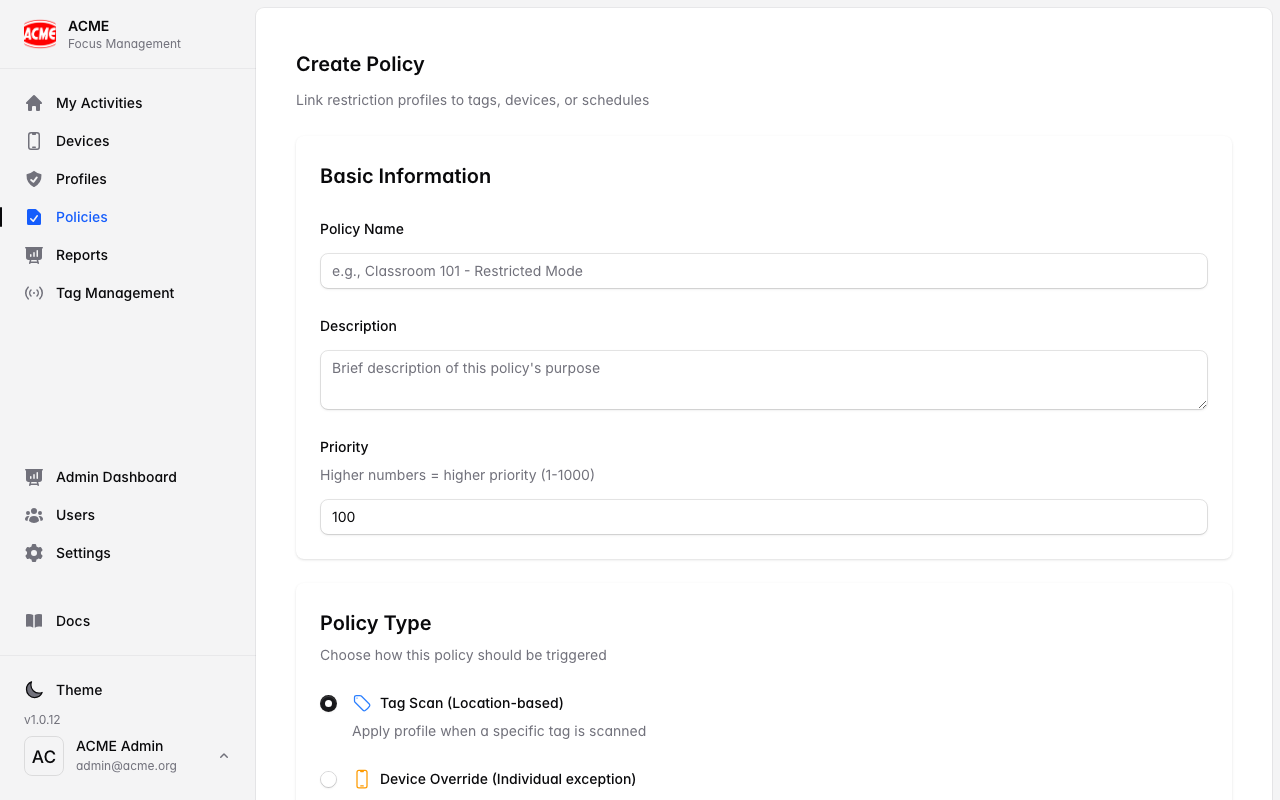
From the dashboard, go to Policies and choose New policy.
2
Choose the profile to apply
Select the restriction profile this policy should activate.
3
Set the conditions
Add any of the following. Leave a condition empty to mean “always”.
- Tags — which tag(s) this policy applies to.
- Time ranges — e.g.
09:00–15:00. - Days of week — e.g. Monday–Friday.
4
Save
Select Create. The policy is active immediately.
Time and day conditions are evaluated in your organisation’s timezone (see Settings).
How a scan is resolved
1
A tag is scanned
The app sends the scan to FocusFlow.
2
Policies are checked
FocusFlow finds the policies that match the tag, current time, and day.
3
A profile is chosen
The first matching policy’s profile is applied. If none match, the default profile is used.